
The Big Picture
For any show beyond a handful of routines, the number of possible orderings is enormous — far too many to ever check by hand. ShowSort's optimizer works through them quickly on your behalf and keeps the arrangements that reduce the most quick changes for your cast.
The Airport Analogy
Imagine each performer is a traveler with connecting flights (routines) to catch throughout the day. Some layovers are tight, some are comfortable. Your goal is not just to get one traveler to every flight on time. Your goal is to coordinate many airports at once so the fewest travelers overall are sprinting between gates.
ShowSort does exactly that, but for costume changes instead of gates.
The Progress Bar
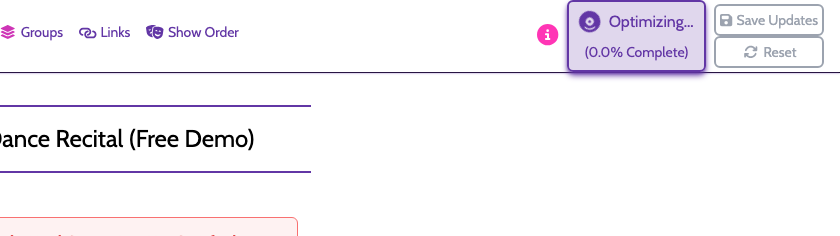
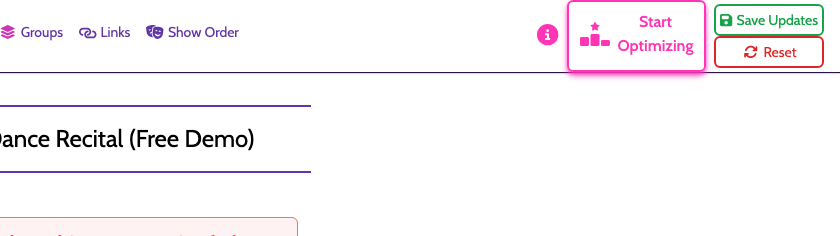
When you click Start Optimizing, you'll see a progress bar that counts from 0% to 100%.
Start:

In progress:
Completed:
Here's the key thing to understand: anytime a better order is found, the progress resets to 0%. Lots of resets means lots of improvements, which is a good sign. The bar reaching 100% means no better order was found that still follows all of your current rules.
If your policy rules are very strict, the app may not have much left to move around. The order you end up with is fine — it just may not be much different from where you started, because the rules don't leave a lot of room.
For more on this, see When Rules Leave Little Room to Improve.
Can't Change the Original Show Order?
If your configured (original) order suddenly feels locked after optimization, that's expected.
- Click Save Updates to accept the optimized result as your new configured order
- Click Reset to discard the optimized result and return to your prior configured order
Until you choose one of those buttons, ShowSort keeps the configured side frozen so you can compare safely.
Running Multiple Times
It's normal to click Start Optimizing more than once. Each run can find a slightly different arrangement, and occasionally a fresh run will improve on the previous one.
Your show purchase includes unlimited optimization runs, so use them freely.
Pausing
Click the button again while it's running to pause optimization. You can keep working — adjust policy rules, rearrange routines — and start it again when you're ready.
What "Better" Means
The optimizer minimizes the total number of quick changes across all performers. A quick change happens when a performer has consecutive routines too close together — by default, with only one other routine between them. You can adjust the sensitivity in your show preferences.
Saving the Result
When the optimizer produces a result you like, click Save Updates to copy that order into your configured side. It then becomes your new working order — and the starting point for any further policy rule changes or optimization runs. Click Reset if you'd rather throw the optimized result away and stick with what you had.