
What is a Quick Change?
A quick change occurs when a performer appears in two routines that are close together in the show order — close enough that they don't have time to fully change costumes between them.
By default, ShowSort flags a quick change when a performer has two routines with only one routine between them. For example:
- Routine 5: Hip Hop ← Emma performs
- Routine 6: Jazz (someone else — Emma is backstage)
- Routine 7: Lyrical ← Emma performs again
Emma has only one routine to change from her Hip Hop costume into her Lyrical one. That's a quick change.
Adjusting the Sensitivity
Right at the top of the Quick Changes panel on your show page are two adjusters:
- Warn About N-Number Changes — how many routines apart still counts as a quick change worth flagging. Increase this if your dressing area is tight and even three routines apart feels rushed.
- "Consider Up To N-Number Changes" — how many extra "almost quick change" levels you want listed for context. Useful if you want to see borderline cases without acting on them.
Important: "Consider Up To" is informational only. It expands what you can review in the Quick Changes panel, but it does not change how optimization is prioritized.
Click the up/down arrows next to each label to change the value — your preference is saved automatically for that show.
The Quick Changes Panel
On your show page, the Quick Changes button opens a panel that lists every flagged quick change in your current optimized order, organized by how many routines apart the performer's back-to-back appearances are.
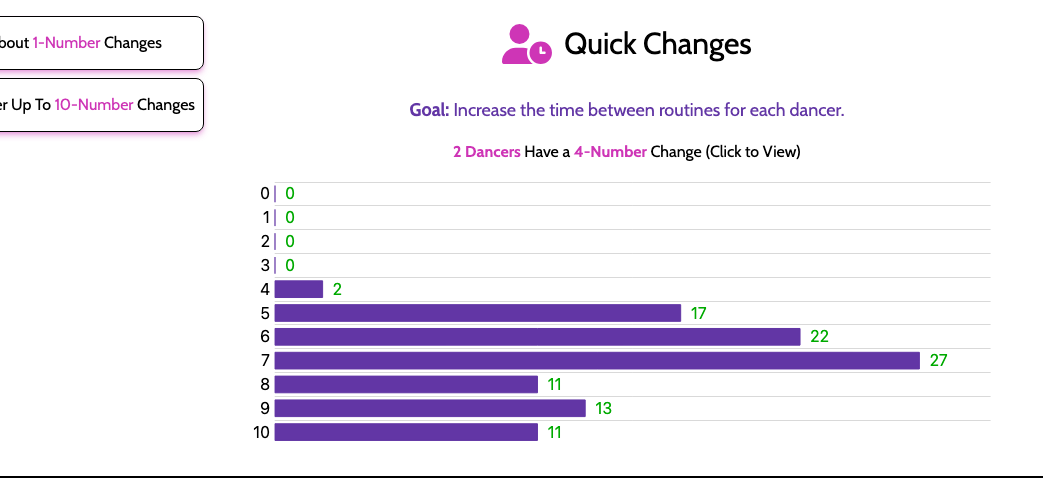
Use this as a checklist during your final review to decide if any manual adjustments are needed.
Reducing Quick Changes
The optimizer handles most of this automatically, but you can also:
- Add an intermission — performers don't accumulate quick changes across an intermission
- Use linking — tell the optimizer that two routines should stay close together for performers who share similar costumes
- Use groups — keep a set of related routines together as a block
- Manually reorder — drag routines in the configured order to manually resolve a specific conflict