
Step 1: Import & Preview
Upload your spreadsheet on the Create a Show page. Confirm the routine and performer counts look correct.
If anything looks incorrect here, fix your source file first — bad data in means bad shows out. See Preparing Your Import File.
Step 2: Click "Start Optimizing"
You don't need to configure anything fancy yet. Just click Start Optimizing at the top of your show page.
Before starting:

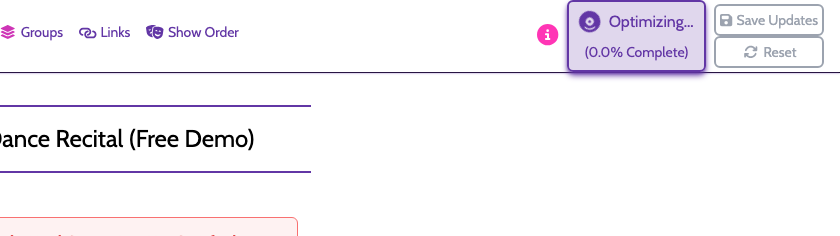
While running:
When finished:
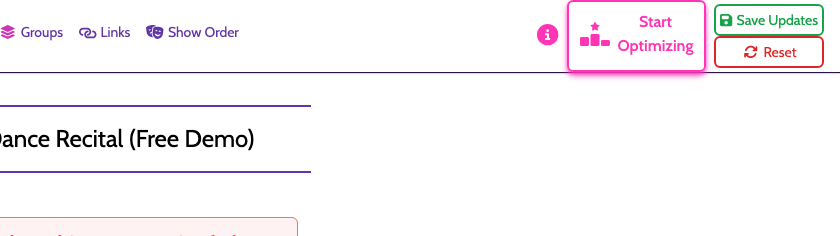
The progress bar will climb to 100%. Anytime ShowSort finds a better arrangement, the bar resets to 0% — that's normal, and it's a sign the optimizer is still finding wins.
Step 3: Review Quick Changes
Open the Quick Changes panel and skim the list. Are any of these unacceptable? Could an intermission solve a cluster of conflicts?
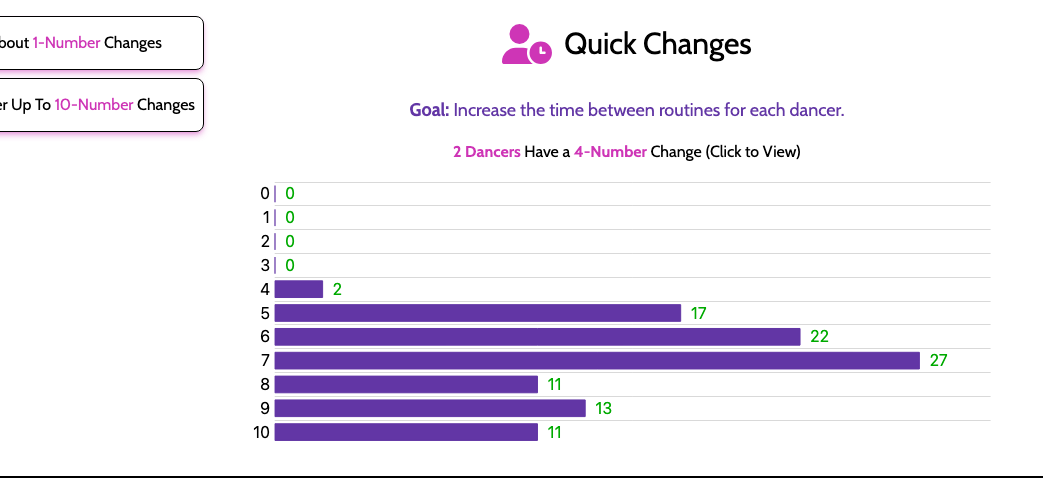
Important: "Consider Up To N-Number Changes" is for visibility, not scoring. It surfaces near-miss cases in the list, but it does not make the optimizer treat those as full quick-change violations.
Step 4: Add an Intermission (If Needed)
Click Add Intermission and either let the optimizer place it, or drag it where you want and pin it via its gear → Restrict To… → Position. Re-run optimization and watch the quick-change count drop.
Step 5: Lock or Restrict Special Numbers
Have a specific opening or finale? Lock it. Have a guest piece that must be in the second act? Act-restrict it. See Locking Routines and Act Restrictions.
Step 6: Optimize Again
Each click of Start Optimizing tries a fresh approach. Run it a few times to see if you can shave off a few more conflicts.
Step 7: Save & Export
When you're happy with what the optimizer produced, click Save Updates to copy it into your configured order. Then head to Reports to download your program and performer schedules.
If you cannot drag or edit your original configured side after a run, you still need to make your decision:
- Save Updates to keep what optimization found
- Reset to throw it away and unlock editing again
That's it — your show is ready.