
Your Show's Home Base
Once you've created a show, the show page is where everything happens. It has two main panels side by side:
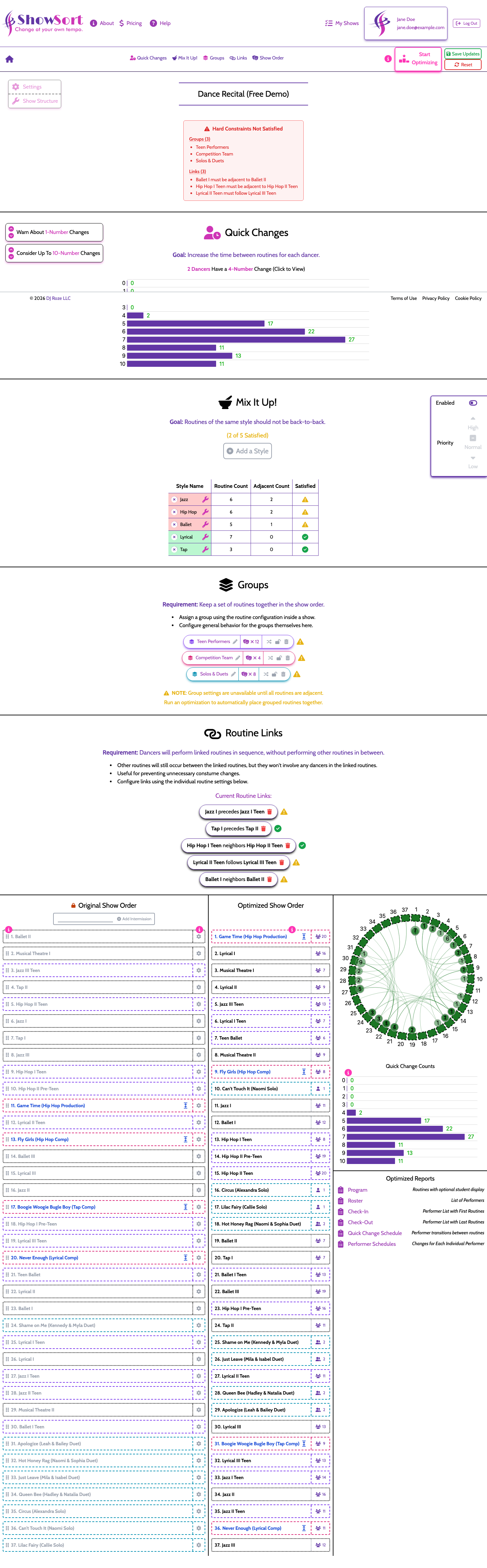
Left Panel: Your Configured Order
This is your arrangement — the order you've set up with all of your constraints (locks, groups, intermissions, etc.). You drag and drop routines here, apply constraints, and configure how you want the show to run.
Think of this as the plan you hand to ShowSort: "Here's the framework — now find me the best show order within these rules."
Right Panel: Optimized Order
This is the result of running the optimizer on your configured order, taking all of your constraints into account.
The optimized side only appears once it differs from your configured order. When you're happy with what the optimizer produced, click Save Updates to copy it over to your configured side — that's how you make the optimized result your new working order.
If your configured side feels temporarily locked after optimization, that's expected. Use Save Updates or Reset first, then editing is unlocked again.
The Routine List
Each routine card shows:
- Routine name — click to see the performer list
- Quick-change indicator — a warning badge if a performer has a tight change before or after this routine
- Controls — drag handle, lock/unlock, link, act restriction, notes
Intermissions
Add intermissions via the Add Intermission button. Intermissions act as full rest breaks — performers don't accumulate quick changes across an intermission. You can lock an intermission in place or let the optimizer decide where it fits best.
Settings & Show Structure
In the upper-left corner of your show page you'll find two links: Settings (event logo, notes format, flexible sizes) and Show Structure (add or remove routines and performers, rename people or numbers, configure multiple shows).
Per-Routine Gear Menu
Every routine row has a small gear icon. Clicking it opens an inline panel for that one routine — set a group, restrict it to a position/act/show, link it to another routine, or edit its notes. See Routine Settings (Gear Menu).
Hard-Constraint Warnings
If ShowSort can't honor every group, link, or duplicate rule you've set, a red exclamation triangle appears in the sticky header and a red banner appears below the order. See "Hard Constraints Not Satisfied" Warning.