
What This Page Is
Show Structure is the page where you adjust the underlying makeup of your show — who's in it, what's in it, and (if you're running a multi-show) how it's split across performances. Get to it from the Show Structure link in the upper-left of your show page.
It's divided into two sections:
- Show Structure — adjusting participation (add/remove/rename). Available for every show.
- Configure Multiple Shows — the per-performance breakdown. Only appears when you're running a multi-show.
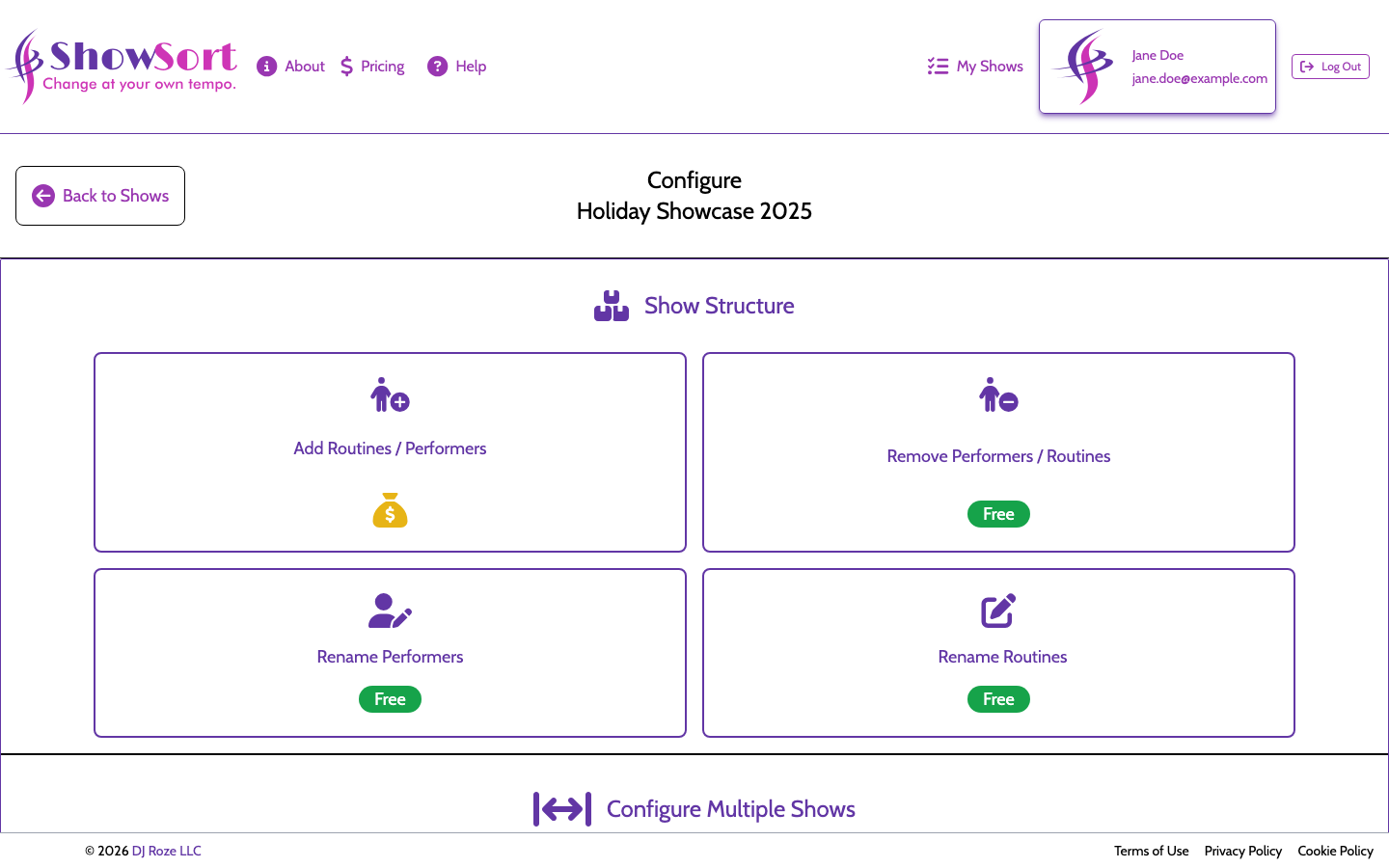
Section 1: Show Structure (Participation)
Four large cards let you change who and what is in the show:
- Add Routines / Performers — add a new routine, or add an existing performer to an existing routine. Paid on a regular show; free in Free Preview, with Free Edits, or under a subscription that includes additions.
- Remove Performers / Routines — take a performer out of a routine, or remove a routine entirely. Always free.
- Rename Performers — fix typos or change display names. Always free.
- Rename Routines — change the title of any routine. Always free.
See Pricing & Purchases for the cost of additions.
Section 2: Configure Multiple Shows (Multi-Show Only)
If your show is a multi-show, you'll see a table of your performances with these columns:
- Show Number — the order the performance appears in (Show 1, Show 2, …).
- Title — the audience-facing name (e.g., "Saturday Matinee").
- Routine Count — the target number of routines in that performance.
- Image — an optional per-performance image used in reports and other display contexts.
- Add/Remove — controls to insert a new performance or remove this one.
Built-In Guardrails
- You can't go below two performances.
- ShowSort only allows adding another performance when each show can still hold a workable number of routines.
- Changes are staged until you click Save Changes (or Save Configuration, depending on what you've edited).
- If someone else changed the show while you were editing, you may be asked to refresh before saving.
A Heads-Up About Locks
If you change the multi-show breakdown (adding, removing, or resizing performances), ShowSort will warn you that all locked routines will be unlocked and the lock feature itself will be turned off for that batch of changes. You can re-lock individual routines on the main show page afterward.
Best-Practice Order of Operations
- Duplicate your show first if you want a safe sandbox.
- Make your structure changes (add/remove/rename, or adjust multi-show breakdown).
- Review duplicates, families, ignores, and balance.
- Re-run optimization.
- Save once everything looks right.