
What It Is
Every routine row in the show order has a small gear icon. Clicking it opens a compact settings panel for that one routine — no need to leave the show page.
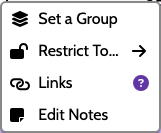
The gear is active on activated shows and on the free demo. On a free preview show, the icon is present but doesn't open until you activate the show.
What You Can Do
The gear menu groups four actions:
1. Set a / Change Group
The colored layer-group icon opens a swatch picker. Pick a color to add the routine to that group, pick the X to remove it, or pick a new color to move it to a different group. Routines in the same group are constrained to stay contiguous in the order.
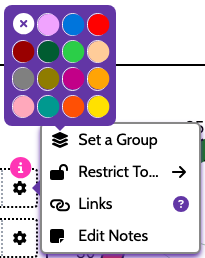
See Groups for the full picture.
2. Restrict To...
Hover the lock / booth / arrows icon to reveal restriction choices for this routine:
- No Restriction — the optimizer can place it anywhere.
- Position — pin this routine to its current slot.
- Act — keep this routine in its current act (only available when the show has an intermission).
- Show — keep this routine in its current performance (only available in multi-show mode).
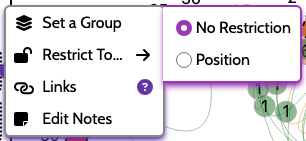
When a routine has any restriction, the lock / booth / arrows icon highlights to show which kind is active. Restrictions are mutually exclusive with group membership — a routine in a group inherits the group's behavior.
See Locking Routines and Act Restrictions for details.
3. Links
The chain-link icon starts a link from this routine. Click it, then click another routine in the order to create a precedes / follows / neighbors relationship between the two. The question-mark next to it opens an inline help bubble.
See Linking Routines.
4. Edit Notes
The sticky-note icon opens a notes editor for this routine, with simple formatting shortcuts (bold, italics, bullet lists). Notes show up in the routine's row and in printed reports.
See Routine Notes.
Closing the Menu
Click anywhere outside the gear panel to dismiss it. Any changes you made are saved immediately — there's no separate "Save" button.