
What a Clean Import Should Look Like
When you upload a spreadsheet on the Create a Show page, ShowSort tries to guess which column is your routine list and which is your performer list — but you should always glance over the preview to make sure it guessed right.
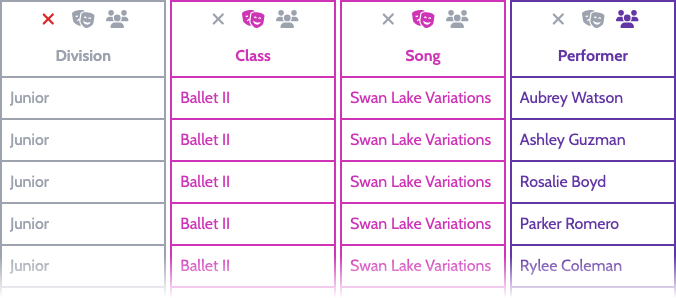
The column-mapping preview uses three icons at the top of each column:
- The X icon marks a column as ignored — ShowSort won't read it.
- The theater-masks icon marks a column as your Routine list. At least one column should be set to this.
- The people icon marks a column as your Performer list. At least one column should be set to this.
Click an icon to toggle that role. The X and Performer icons are mutually exclusive with each other, but you can mark two (or more) columns as Routine — ShowSort will join them together with " - " to form the routine name. (Same goes for performer columns, but that's rarer.)
In the screenshot below, the studio's spreadsheet has a separate Class column ("Ballet II") and Song column ("Swan Lake Variations"). Marking both as Routine produces routine names like Ballet II - Swan Lake Variations — which is usually exactly what you want, since two different classes might pick the same song, and the same class might dance to different songs in different shows.
Once your columns are mapped correctly, scroll down to the summary table to confirm. Each combined routine should appear once with its list of performers next to it:
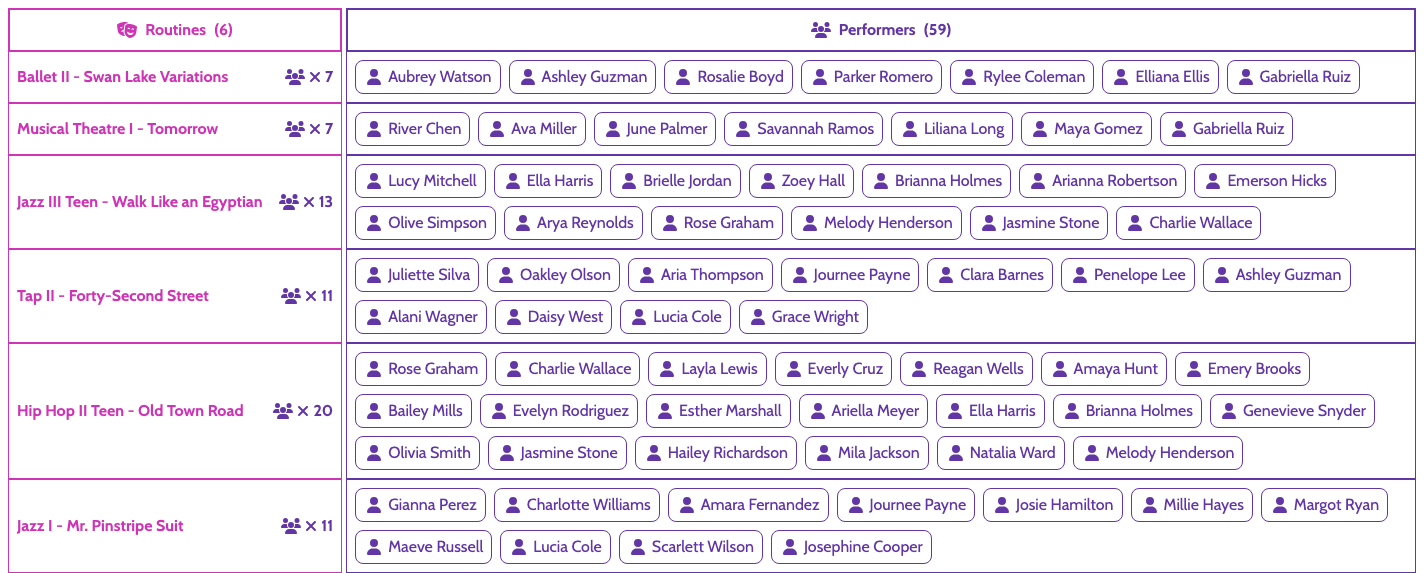
If the summary looks right, you're ready to create the show.
"Why does my performer appear twice in the preview?"
Almost always: their name is slightly different in two rows. Common culprits:
- Extra whitespace — "Emma Smith" vs. "Emma Smith" (two spaces)
- Capitalization — "Emma Smith" vs. "emma smith"
- Punctuation — "Mary-Jane" vs. "Mary Jane" vs. "MaryJane"
- Trailing characters — sometimes a sneaky tab or non-breaking space hides at the end of a name
What to do: Open the file in Excel or Google Sheets, sort by performer name, look for near-duplicates, and standardize.
ShowSort will flag these as duplicate performers during import and ask you to confirm before continuing. If you see that warning, fix the source spreadsheet rather than ignoring it — those near‑duplicates will haunt you later as "phantom" performers.
"Why does my routine appear with the wrong performers?"
Same problem — but with the routine name. ShowSort treats each unique routine name as a separate routine, so even a one-character typo creates a phantom routine.
"All my performers are in one cell, separated by commas (or slashes, or semicolons…)"
This is a common export style from studio software — one row per routine, with every performer crammed into one cell:
| Routine | Performers |
|---|---|
| Ballet II | Emma Smith, Olivia Jones; Mia Brown / Ava Wilson |
ShowSort needs one row per routine‐performer pair, not one row per routine. To fix this:
- Open the file in Excel or Google Sheets.
- Use Text to Columns (Excel) or Split text to columns (Google Sheets) on the performer cell, using your separator (comma, slash, semicolon, etc.).
- Then unpivot — copy each routine's name down so every performer ends up on its own row with the routine repeated next to them.
Or just email support@showsort.com with your file and we'll convert it for you.
"I picked the same column for routines and performers and now everything is broken"
A column can only have one role at a time — clicking the Routine icon on a column that's already marked as Performer flips it to Routine (and vice versa). So you can't truly assign both roles to one column. But you can accidentally:
- Leave the wrong column highlighted as Performers. If ShowSort guessed wrong (e.g., it picked a numeric ID column instead of the name column), the preview's performer side will show numbers or codes instead of people. Click the people icon above the correct column to fix it.
- Forget to mark a second routine column. If your studio exports Class and Song separately and you only mark Class, you'll get one giant "Ballet II" routine instead of separate "Ballet II - Swan Lake" and "Ballet II - Clair de Lune" routines — and you'll see performers appearing twice as a result.
- Accidentally combine columns you didn't mean to. Marking two columns as Routine joins them with
" - ". If you only meant one of them to be the routine, click the routine icon again on the unwanted column to clear it. - Forget to mark any column as Routines (or as Performers). You'll see a red message under the preview reminding you to pick one.
"My CSV from DanceStudio-Pro looks broken"
DanceStudio-Pro occasionally outputs malformed CSV when names contain commas, quotes, or apostrophes. Either:
- Clean the special characters in DanceStudio-Pro before re-exporting, or
- Open the recital.csv in a spreadsheet program, fix the bad rows by hand, save as CSV, and upload that
If you're not sure what's wrong, email support@showsort.com with your file attached and we'll help you sort it out.
"My file uploaded but the routine count is wrong"
- Did your file have a header row that wasn't auto‐detected as one? Toggle the Contains a Header Row checkbox.
- Are there blank rows or summary rows at the bottom of your spreadsheet? ShowSort will treat those as data — delete them first.
- Are there merged cells? Unmerge before saving.
- Did you accidentally combine two columns into the routine name? Check that only one column has the routine icon set.
"The preview shows 'unnamed performer' or 'unnamed routine'"
A row is missing either the performer name or the routine name. ShowSort will flag those as partial entries and ask you to confirm before continuing. Either fix the missing cells in your source file or check the box to ignore them — but be aware that ignoring them silently drops those rows.
"I uploaded the wrong file and already paid"
You're not stuck. The best next step is to email support@showsort.com with:
- Your account email
- The show link (if available)
- A short note explaining what should be corrected
We'll help you choose the fastest path to get your show back on track.
Don't Have a File Yet?
Download our CSV template or Excel template. Both are pre‐filled with example data — just replace the rows with your own.